

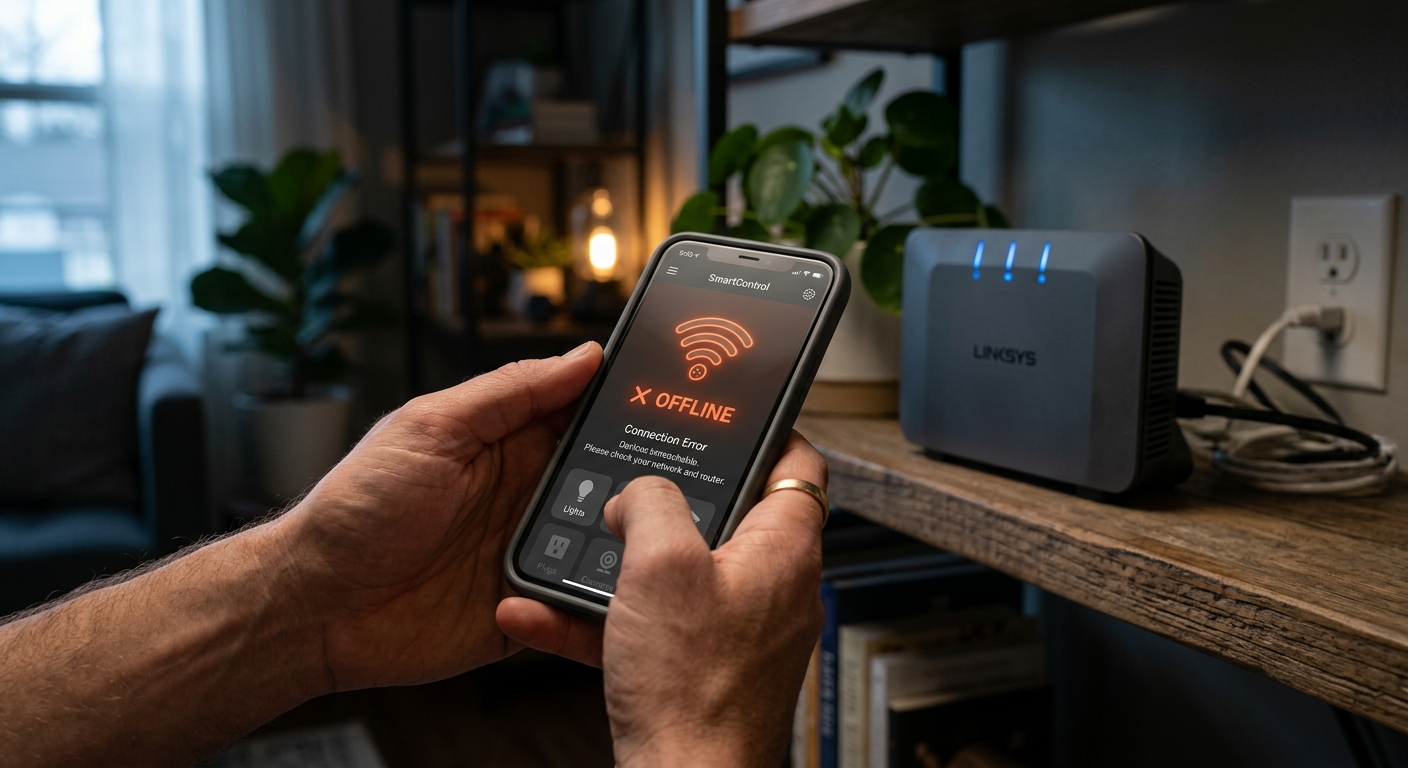
Building a smart home brings incredible convenience and automation to your daily life. However, there is nothing more frustrating than giving a voice command to turn off the lights, only to hear your virtual assistant reply: “Sorry, the device is unresponsive.”
While modern home automation devices like smart plugs and Wi-Fi switches are highly reliable, they still rely on wireless networks, and occasional connectivity hiccups are inevitable. The good news is that you do not need to be an IT expert to solve these problems. In this guide, we will break down the most common smart home connectivity issues and provide quick, practical fixes to get your ecosystem back online.
1. The Device Will Not Connect During Initial Setup
This is the most common hurdle for beginners. You unbox a brand-new smart plug, download the companion app, but the app fails to find or connect to the device.
The Fix: Switch to the 2.4 GHz Wi-Fi Band
Almost all budget-friendly smart home devices operate exclusively on the 2.4 GHz Wi-Fi band because it offers better range and wall penetration than the faster 5 GHz band. If your smartphone is connected to the 5 GHz network during setup, the app will fail to pass the Wi-Fi credentials to the smart device.
- Go to your smartphone’s Wi-Fi settings.
- Look for your network name (SSID). If you see two networks (e.g., “HomeNetwork” and “HomeNetwork_5G”), connect to the one without the 5G label.
- If your router combines both bands under one name, you may need to temporarily disable the 5 GHz band in your router’s admin settings, connect the smart device, and then turn the 5 GHz band back on.
2. Devices Randomly Go “Offline” in the App
Your smart devices have been working perfectly for weeks, but suddenly one of them shows up as “Offline” in your control app, even though it is securely plugged into the wall socket.
The Fix: Check for Wi-Fi Dead Zones and Interference
Wireless signals fluctuate. A smart plug tucked behind a heavy metal refrigerator or a thick concrete wall might struggle to maintain a stable connection.
- The Distance Test: Unplug the “offline” device and plug it into a socket closer to your Wi-Fi router. If it instantly comes back online, you have a range issue. You may need to invest in a Wi-Fi extender.
- Reboot the Router: Sometimes, the IP address lease for the device expires or glitches. Unplugging your Wi-Fi router for 30 seconds and plugging it back in often forces all devices to reconnect and grabs a fresh IP address.
3. Voice Assistant Responds with “Device is Unresponsive”
You can turn the smart plug on and off using the manufacturer’s native app (like Smart Life or Tuya), but when you ask Alexa or Google Assistant to do it, they claim the device is unresponsive.
The Fix: Re-sync Your Linked Accounts
This issue occurs when the communication bridge between the device’s native cloud server and Amazon/Google’s servers experiences a temporary outage or desync.
- Open the Alexa or Google Home app on your smartphone.
- Navigate to the “Skills” or “Linked Services” section.
- Find the native app associated with your smart plug, disable the link (unlink account), and then re-enable it. You will have to log in again, but this forces a hard refresh of all your devices and usually restores voice control instantly.
4. Devices Fail to Reconnect After a Power Outage
Following a neighborhood power outage or a tripped circuit breaker, the electricity comes back on, but all your smart plugs and switches remain disconnected from the network.
The Fix: The Patience Method (Power Cycling)
When power is restored, your smart devices boot up in a matter of seconds and immediately start looking for a Wi-Fi signal. However, your Wi-Fi router can take up to 3 to 5 minutes to fully boot up and start broadcasting an internet connection. Because the smart devices couldn’t find the Wi-Fi immediately, they sometimes “give up” and go into a standby error mode.
- Simply wait until your Wi-Fi router is completely fully functional (check that the internet light is solid green).
- Once the Wi-Fi is active, unplug your offline smart plugs from the wall, wait 10 seconds, and plug them back in. They will boot up, see the active network, and reconnect automatically.
Conclusion
A smart home is a dynamic ecosystem, and minor connectivity issues are completely normal. By understanding how your devices communicate with your Wi-Fi router and your voice assistants, you can troubleshoot almost any problem in minutes. Always remember the golden rule of IT troubleshooting: when in doubt, power cycle both the smart device and your Wi-Fi router before attempting any complex resets.